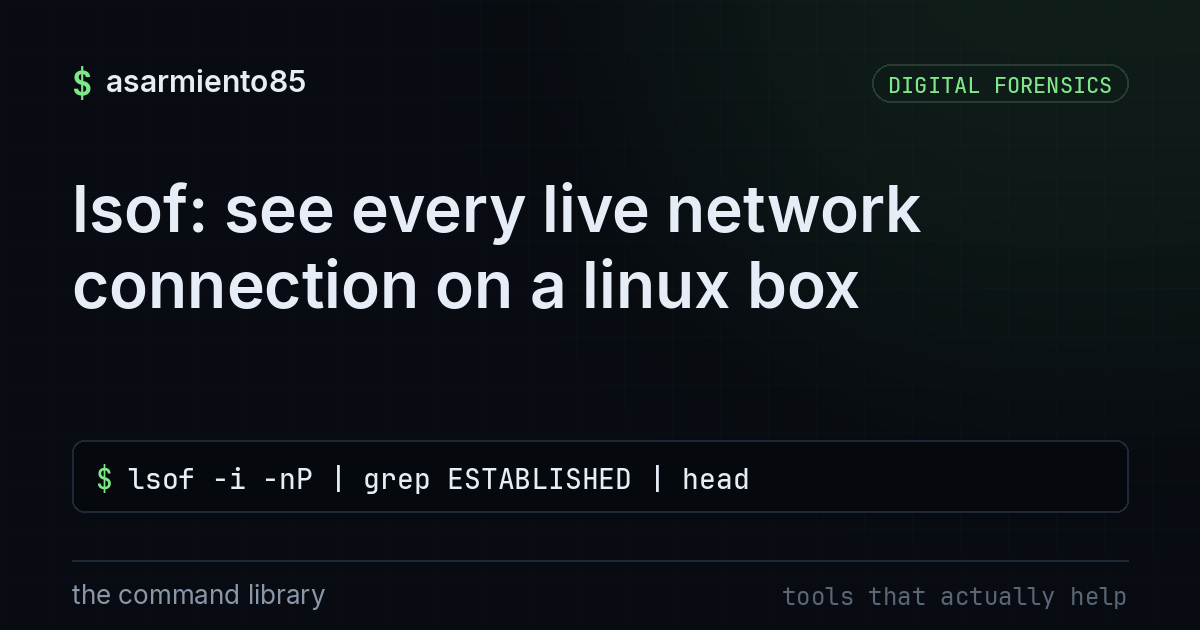
lsof: see every live network connection on a linux box
lsof -i -nP | grep ESTABLISHED | headwhy lsof is basically a heartbeat monitor for your box
lsof stands for "list open files" which sounds boring until you remember that on linux, everything is a file. sockets, pipes, network connections, all of it gets treated like a file under the hood. that means one tool can show you every process on your machine that's currently talking to the outside world, right now, in real time. no agent, no dashboard, nothing to install on most distros because it's already there.
this is the kind of command you run when something feels off. laptop fan spinning for no reason, a server that's a little slower than usual, or you just want to do a five second gut check before you close your laptop for the night. it's forensic in the sense that it captures a snapshot of live activity, and that snapshot can tell you a lot.
breaking down the command
lsof -i -nP | grep ESTABLISHED | headlsof -i tells lsof to only show you network related files, meaning open sockets and connections, instead of dumping every single open file on the system which would be thousands of lines of noise.
-n skips dns resolution. without it, lsof tries to reverse lookup every ip address it finds, which is slow and sometimes leaks your query to whatever dns server you're using. with it, you just get raw ips.
-P skips port name resolution too, so instead of seeing "https" you see "443". this is faster and honestly more useful when you're trying to spot something unusual, because you want the raw number, not a friendly label that might be hiding what's really going on.
grep ESTABLISHED filters the output down to connections that are actually open and active right now, not ones that are listening and waiting, and not ones that are closing down.
head just trims the output to the first ten lines so you're not scrolling forever. drop it if you want the full list.
what normal output looks like
you'll see columns for the process name, the process id, the user running it, the file descriptor, and then the connection itself, formatted like local_ip:port to remote_ip:port. a browser talking to a website, your ssh session back to a server, spotify streaming, all of that is completely normal and expected.
what you're scanning for is the stuff that doesn't have an obvious reason to be there. a process you don't recognize by name. something running as root that has no business touching the network. a connection to an ip address in a country you've never done business with. multiple established connections from a process that should just be sitting quietly in the background.
chasing down something suspicious
say you spot a weird line, some process called something like "sysupdate" or a random string of letters, connected out to an ip you don't recognize. don't panic, but don't ignore it either. pull the process id from that lsof output and dig deeper.
ps -fp PID
lsof -p PID
the first command shows you exactly what binary is running and who launched it. the second shows every file that specific process has open, which can tell you if it's reading from somewhere it shouldn't be, like a hidden directory or a temp folder acting weird.
if the ip address is unfamiliar, a quick whois lookup or a search will usually tell you if it belongs to a known cloud provider, a cdn, or something sketchier. context matters here. a connection to an aws ip might be totally normal for a backup service, or it might be exactly how something is exfiltrating data. that's why building a baseline matters more than any single scan.
the takeaway
the real power move here isn't running lsof once when you're already suspicious. it's running it now, while everything is calm, so you actually know what normal looks like on your machine. save that output somewhere. run it again next week. the difference between the two is where the real signal lives. lsof won't stop an attack by itself, but it will absolutely help you notice one faster than most people ever do, and noticing fast is most of the job.